Adding a PC RS485 Monitor to the EC11 Test Setup
Adding a PC RS485 Monitor to the EC11 Test Setup#
Today I connected my RS485 test setup to my PC so that I could monitor the communications from the computer rather than relying only on the standalone receiver unit.
As a reminder, the current setup consists of:
- Transmitter: Raspberry Pi Pico 2 W, Digital IO Expander Building Block Board, RS485 Non-Isolated Building Block Board, and an EC11 rotary encoder.
- Receiver: Raspberry Pi Pico 2 W, RS485 Non-Isolated Building Block Board, and an SH1106 OLED display.
The transmitter and receiver are connected using a 20 m CAT 6 cable for the RS485 signals. The software running on the Pico boards interprets the encoder signals on the transmitter side and displays the result on the OLED display on the receiver side.
Today I wanted to add a third element to the setup.
The idea was to introduce a third RS485 Non-Isolated Building Block Board connected to a USB serial adapter plugged into my PC. This would allow me to monitor the RS485 traffic directly from the computer and verify that the data was propagating down the line.
After finding an unused Ethernet patch cable to use for wiring, I connected everything together.
Designing the Multi-Drop Topology#
RS485 is a multi-drop differential bus, meaning multiple listening devices can be connected across the same twisted pair. However, a linear network layout requires attention to termination. Signal reflections occur at the physical boundaries of the cable run, meaning only the two outermost nodes should have termination resistors enabled.
Because our new PC monitor node sits at the end of the line extension, the network topology shifts to this linear arrangement:
Transmitter (Terminated) <—> Receiver (Unterminated) <—> PC Monitor (Terminated)
- Node 1 (Transmitter): Located at the start of the line. 120-ohm termination resistor enabled. 4.7 kOhm fail-safe pull-up and pull-down biasing resistors enabled to prevent the differential lines from floating during bus idle states.
- Node 2 (Receiver): Located in the middle of the bus via a 20 m CAT 6 run. 120-ohm termination resistor disabled.
- Node 3 (PC Monitor): Located at the end of the line, linked via a 2 m patch lead branching out from Node 2. 120-ohm termination resistor enabled.
With this configuration, the bus is terminated on both ends, and the middle receiver node acts as a tap.
Hardware Configuration Summary#
The complete physical test layout is as follows:
RS485 Non-Isolated Board (Node 1 - Tx)
- Status: Termination Enabled | Biasing Resistors Enabled
- Connected to: Raspberry Pi Pico 2 W, Digital IO Expander Board, & EC11 Rotary Encoder
—> Linked via a 20 m CAT 6 Cable —>
RS485 Non-Isolated Board (Node 2 - Rx)
- Status: Termination Disabled
- Connected to: Raspberry Pi Pico 2 W & SH1106 OLED Display
—> Linked via a 2 m CAT 5 Patch Lead —>
RS485 Non-Isolated Board (Node 3 - PC Monitor)
- Status: Termination Enabled
- Connected to: FTDI USB-to-Serial Adapter & Host PC
Wiring the PC Monitoring Interface#
With the network daisy-chained, I hooked the third RS485 module up to my USB-to-Serial converter stick.
I had forgotten to solder on the pins for the board’s serial input header the first time around, but this was sorted after a few minutes of soldering.
The interface connections between the terminal pins map out like this:
| RS485 Building Block Board | USB Serial Adapter | Note |
|---|---|---|
| GND | GND | Common Ground Reference |
| 5V | 5V | Logic Power Supply |
| RO (Receiver Output) | RXD | Data passing from RS485 bus to PC |
| DI (Driver Input) | TXD | Data passing from PC to RS485 bus (Optional) |
On-Board Feature for Control Pins: Standard half-duplex RS485 transceivers require you to manage the Driver Enable (DE) and Receiver Enable (/RE) control lines to switch between listening and talking modes. Because a standard USB-to-Serial stick only breaks out the data lines (TXD/RXD), managing these lines externally would require extra connections.
The RS485 Non-Isolated Building Block Board accommodates this configuration. The DE and /RE lines are connected together via an on-board jumper and equipped with a built-in pull-down resistor. By leaving these control pins disconnected, the hardware automatically defaults to an active listening state. This makes the module a bus sniffer out of the box and prevents a floating pin from accidentally enabling the transmitter and driving noise onto the network.
For receive-only monitoring from the PC, the critical pathway is simply RO to RXD. It is always worth double-checking the silkscreen markings on your specific serial adapter, as some manufacturers label lines from the chip’s internal perspective, while others label them by target destination.
Testing and Validation#
With everything powered on and wired together, I opened PuTTY on the PC, targeted the active adapter interface (COM5), and configured the session speed to 115200 baud.
Turning the encoder knob and pressing the button showed that text commands were logging across the PuTTY terminal interface. The intermediate receiver Pico also received the data and updated the OLED display correctly.
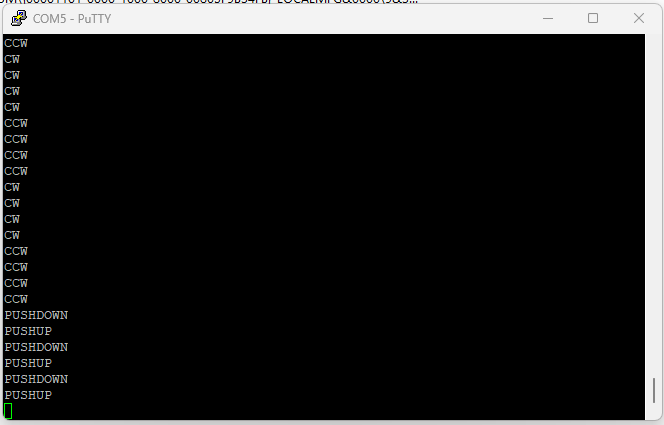
Receiving signals on the PC via PuTTY
Next Steps#
At this point, the hardware setup works as expected: the transmitter sends commands, the receiver decodes them to update the display, and the computer monitors the traffic concurrently.
The next stage is to replace the raw terminal view with a basic desktop application. Processing the CW, CCW, and PUSH text frames inside a custom Python or Node-RED dashboard script will allow it to drive operations on the PC.
I have a few ideas for how to handle that interface—more on that in a later post.
If you are looking for reusable open hardware modules to speed up your bench testing, or need support designing custom breakout circuits, check out our catalog at Protoworks (NI).
- 2026-10-17 Refining the Protoworks service offerings Lab
- 2026-09-27 Belfast Tech Week Lab
- 2026-09-19 Refining the UCMOD Architecture R&D
- 2026-09-06 Giving AI Agents a Way to Talk to Protoworks Software
- 2026-09-03 A Morning at a Manufacturing Trade Show Lab
- 2026-09-01 Debugging 921600 Baud on the ATtiny1614 R&D